Once you have registered as a vendor, you will automatically be directed to your Vendor Dashboard as soon as you login to your account. There is also a link under My account and in the side menu.
Table of contents
Dashboard
Your vendor dashboard gives you an overview of your Sales, Earning, Page view, Orders, Reviews, Products and any Announcements.
Product Q & A
Even though we recommend you include all relevant information and details on your product page, a customer may want to ask a more specific question about your product or store.
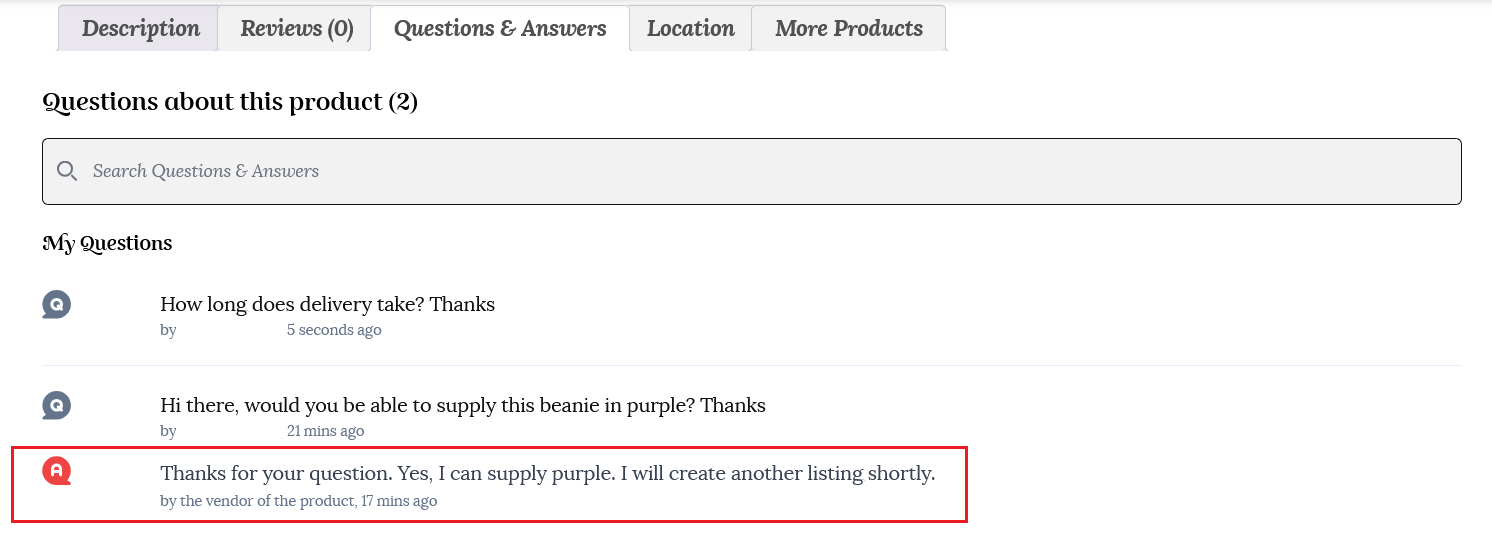
Your product page has a “Questions & Answers” tab to allow a customer to communicate directly with you.
Enabling customers to ask questions about a product helps increase their trust, allows them to make informed purchase decisions, and helps with community building and engagement. Customers must log in to their accounts to ask questions. The questions and answers will be posted on the product page, enabling customers to browse or search for a previously asked question.
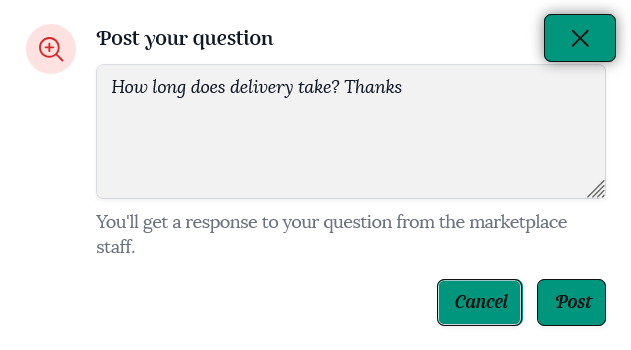
Once a customer clicks on the Post your Question button, they will be prompted to log in to their account if they haven’t already. Then a pop up window will appear for them to post their question.
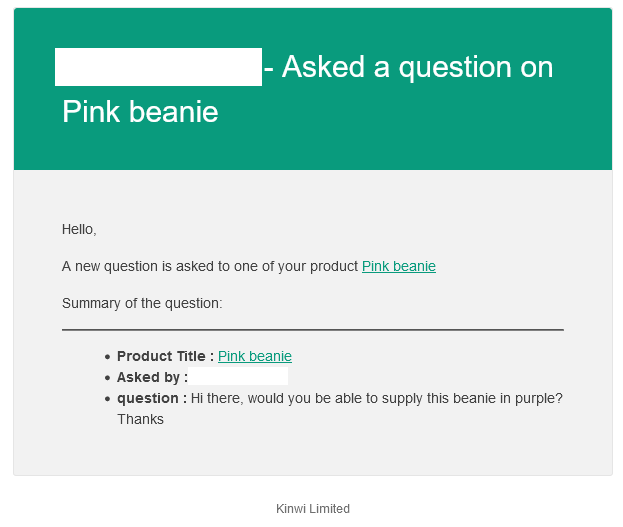
You will receive an email when a question is asked.
To answer any questions on your products, go to your “Product Q & A” tab in your dashboard. Here you will find a list of any questions that have been asked.
Click on the question or the eye icon at the right hand side of the question to view the question. Here you will be redirected to the answer page. Write your answer and hit the “Save” button to answer.
You will see the answer is now saved and will be posted on the product page.
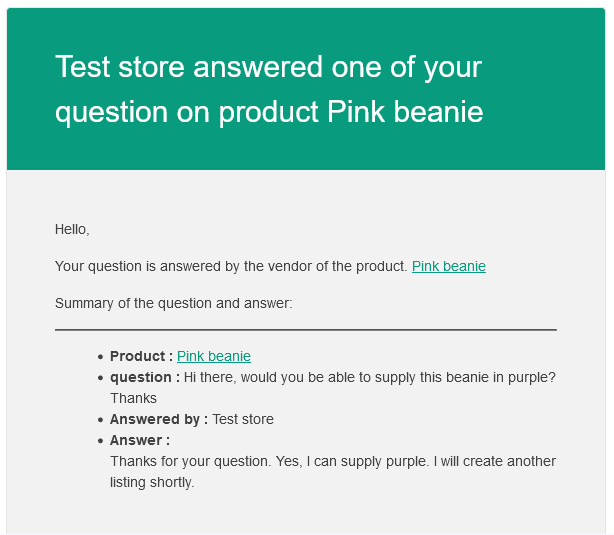
The customer will receive an email advising them that their question has been answered, and provide a link to the product.
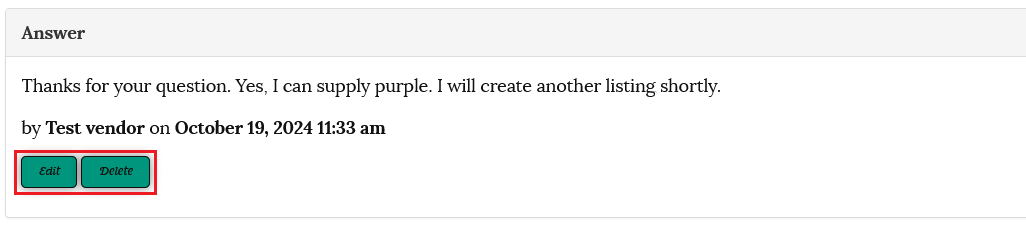
You can use the Edit button to change your answer, or delete the question entirely. This allows you to ensure accuracy and relevance, and remove any inappropriate content.
Reports
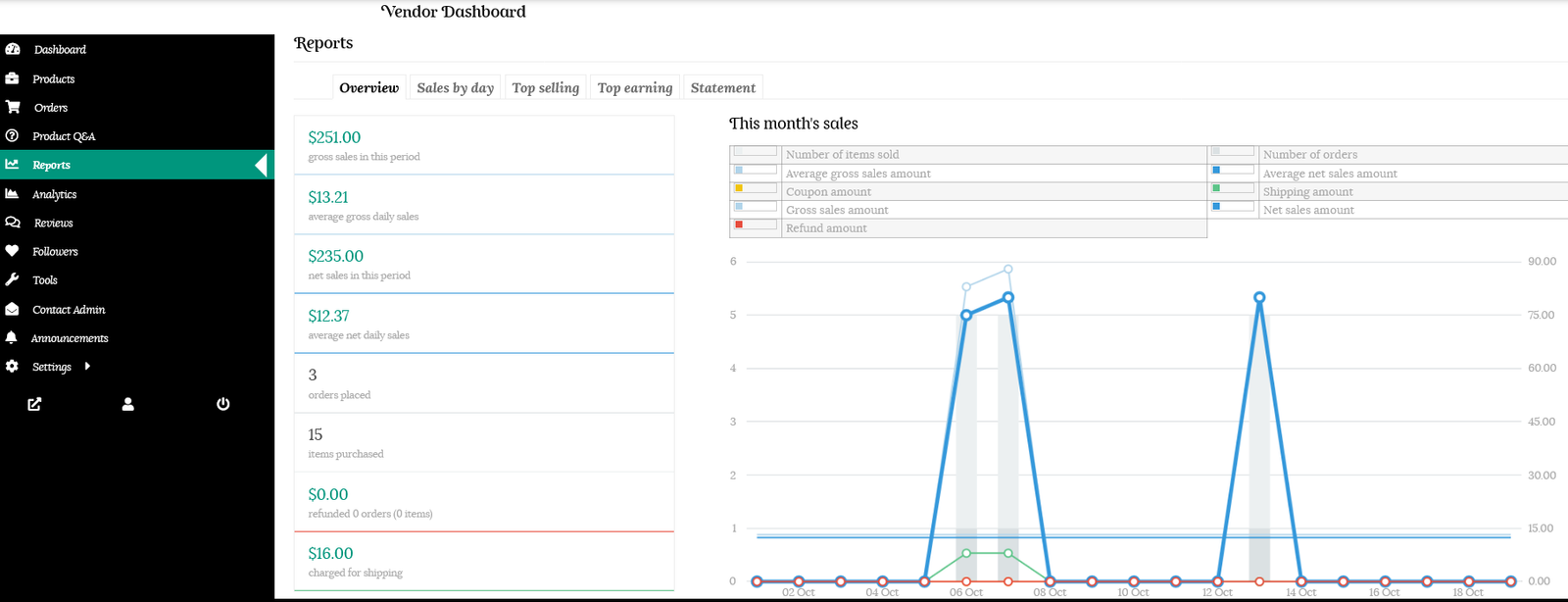
Clicking on the Reports tbk in your dashboard will give you an overview of your sales, orders, items purchased, refunds, and shipping charges.
At the top of the report are options to view your sales by day, your top-selling products, your top-earning products, and your financial statement.
Analytics
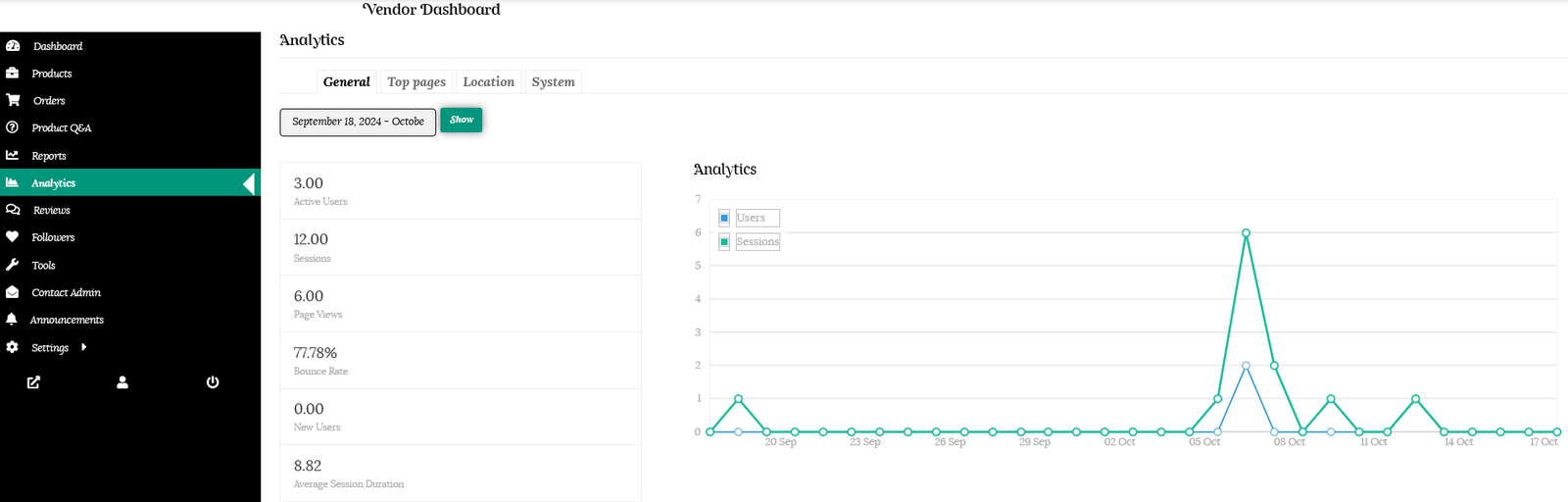
Click on the Analytics option from the sidebar of your dashboard. Here you can view your store metrics to gain data insights, measure and track performances.
Using your analytics data, you can easily find out what are your top-performing pages and improve your copywriting and make your design more engaging for your other pages according to your top pages.
Once you know your top products, you can find out what your customers are doing on those pages, to help their journey to make a purchase from your store.
Reviews
Positive reviews are a wonderful addition to your store and will assist you in gaining trust and ultimately more sales.
Social proof gives your products and business added credibility: 55% of shoppers say that online reviews influence their buying decision, while 72% of buyers will take action only after reading a positive review.
If potential buyers are on the fence about whether or not to purchase your product, showing reviews from other customers can be the difference between them submitting an order or abandoning their cart.
Only customers who have purchased the item from your store can leave a review.
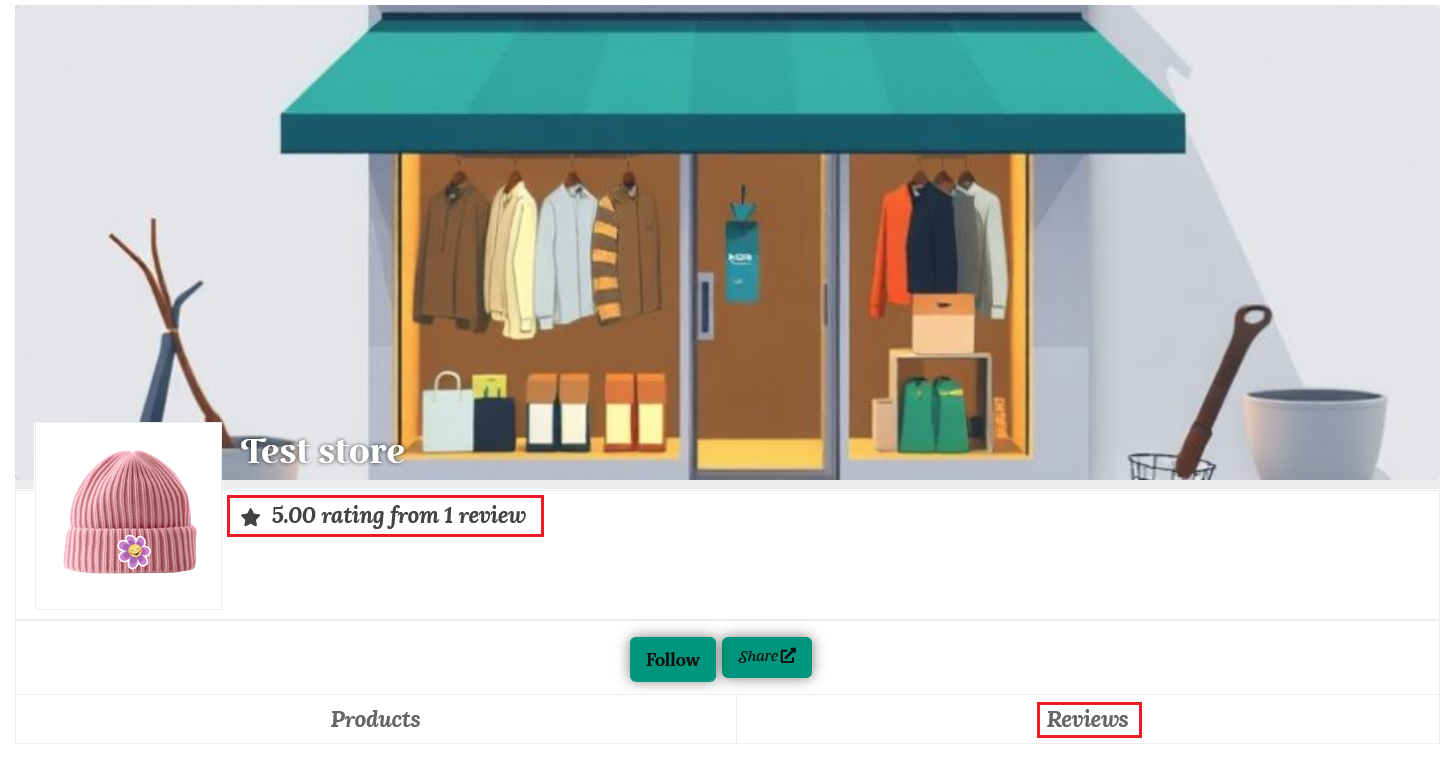
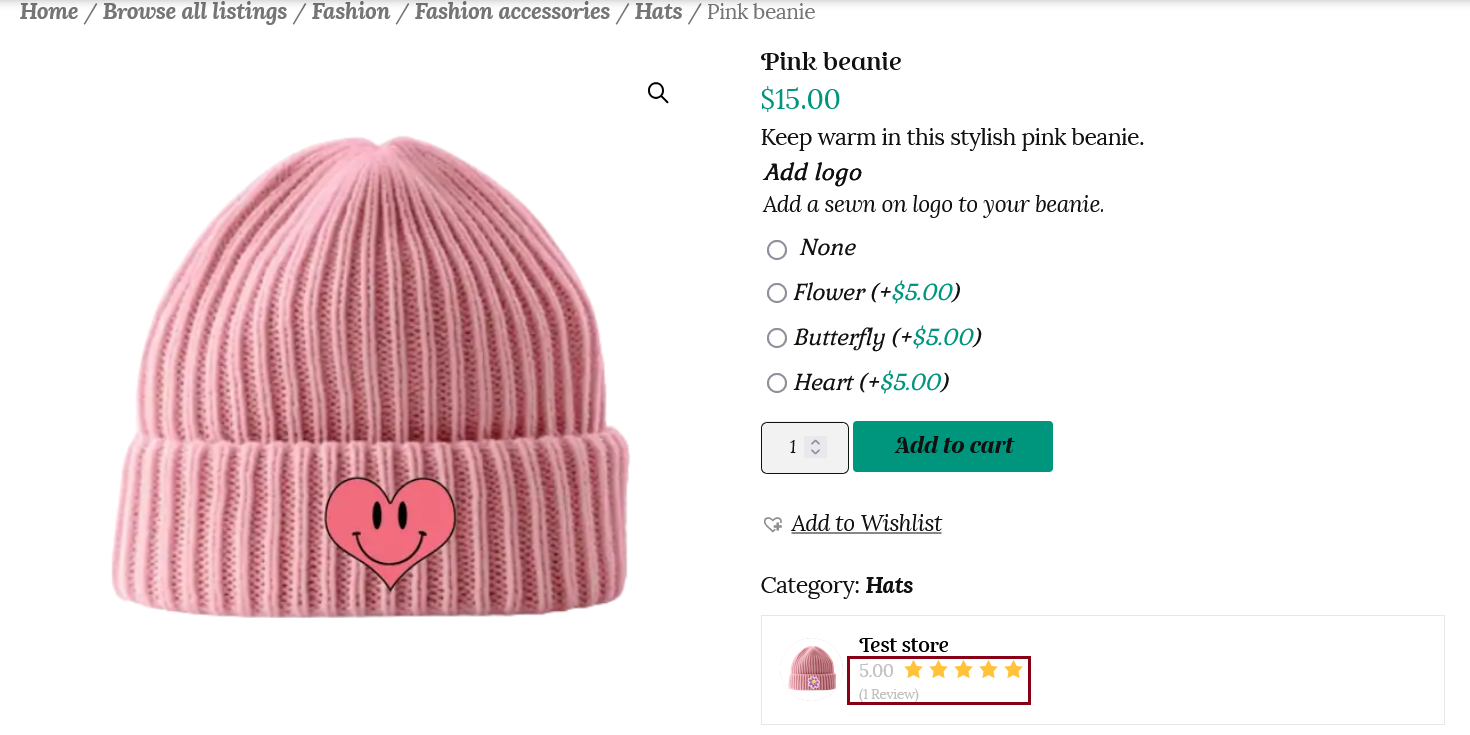
The average rating out of 5 stars will be shown under your store name in the store list, your main store page, and on each product page.
Followers
Customers have the option to follow vendors whose products they like and want to stay updated with. They will get email updates about that vendor’s newly added products.
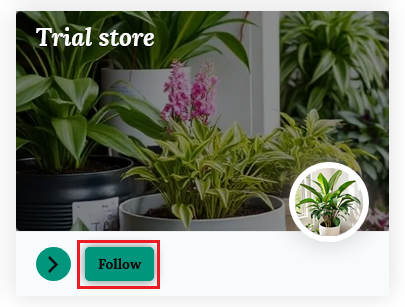
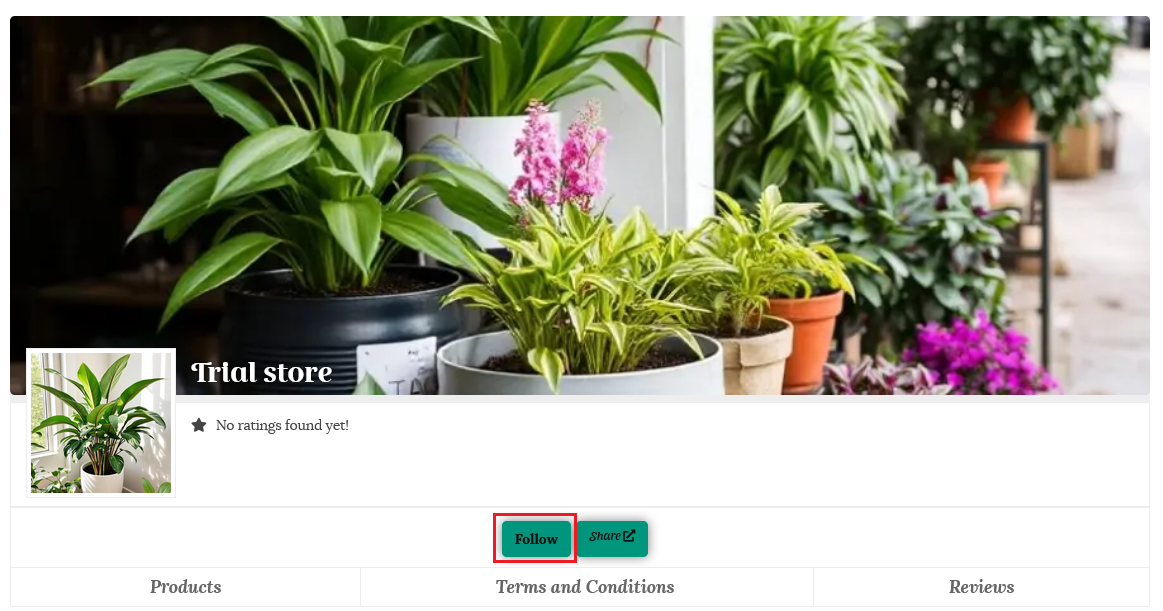
There are follow buttons in both the store list and on your main store page.
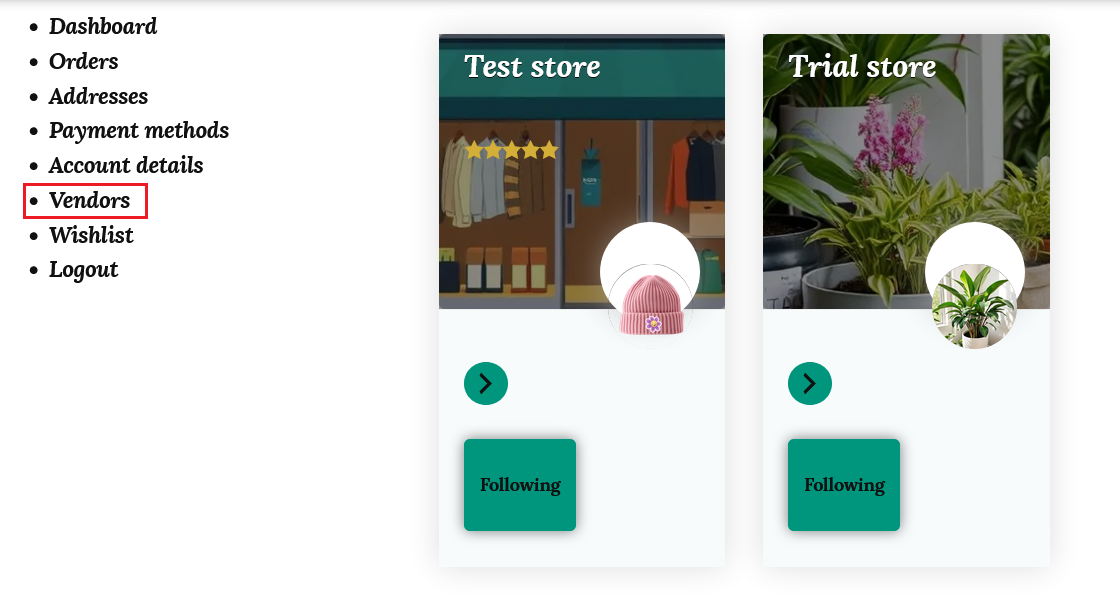
Clicking the follow button will add your store to the “Vendors” tab in the customer’s account.
When a customer follows your store, it will automatically show in the “Follower” section of your dashboard. You will be able to see the name and the time when that customer followed you.
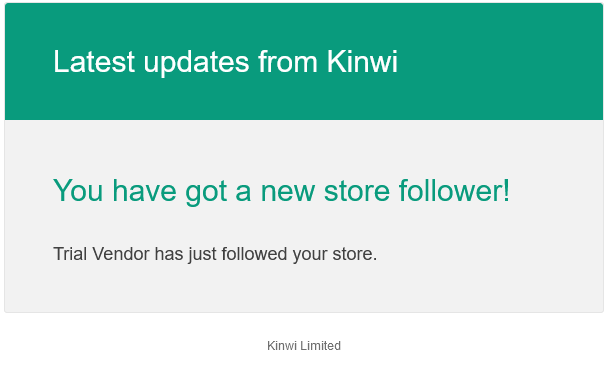
You’ll also receive an email when a customer follows or unfollows your store.
Tools
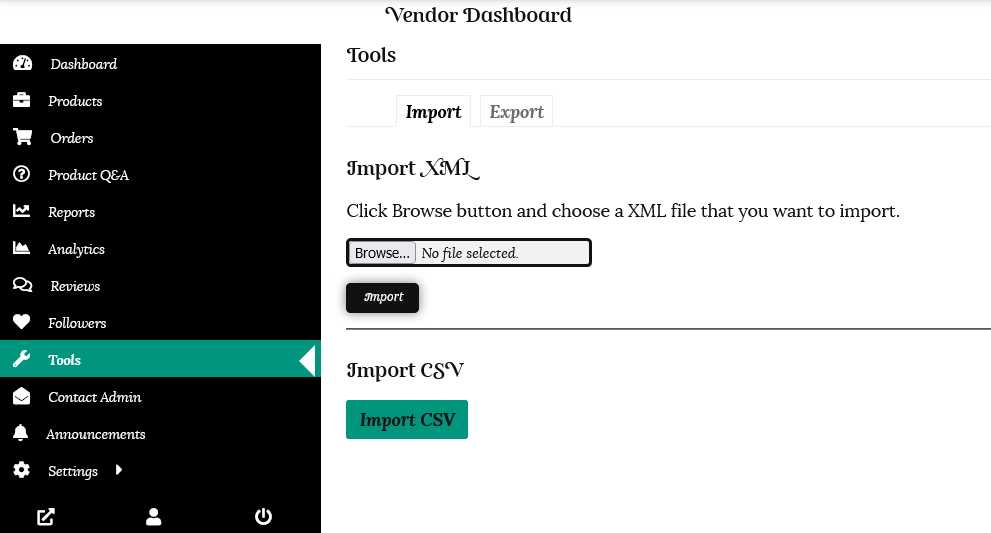
Here you can import or export your products using XML or CSV.
Contact Admin
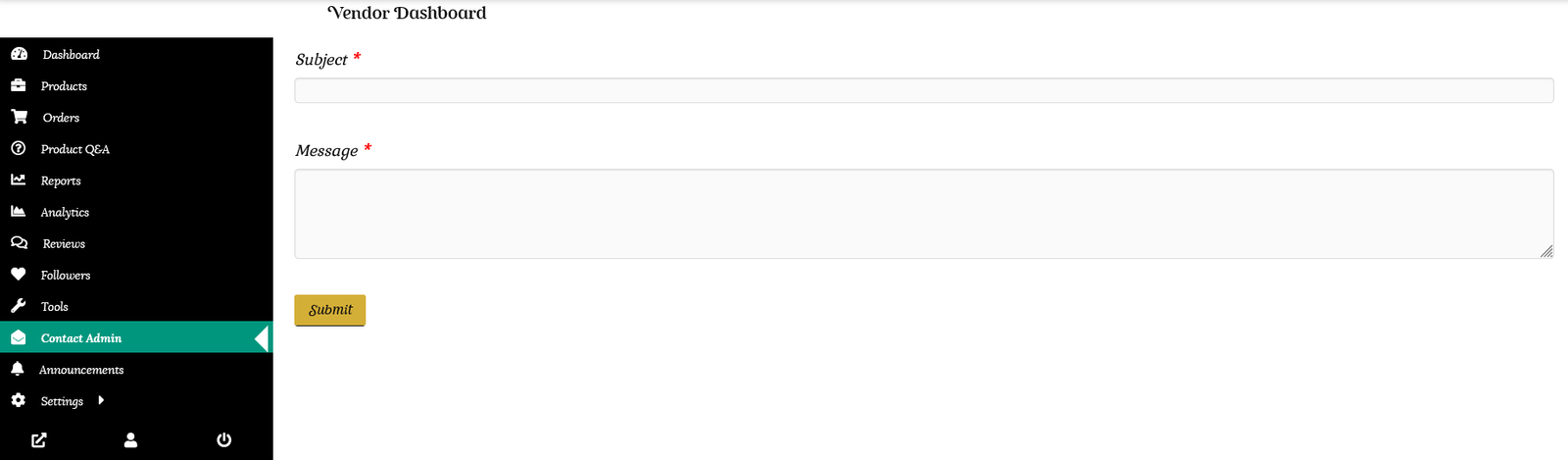
This tab will allow you to contact the Kinwi helpdesk directly from your store dashboard. Clicking on the Contact Admin tab will open up a contact form. Once you are logged in your Name and email address will be auto-populated. All you need to do is enter your query and hit the “Submit Query” button.
The Kinwi helpdesk will receive an email from you and reply directly on that same thread.
Announcements
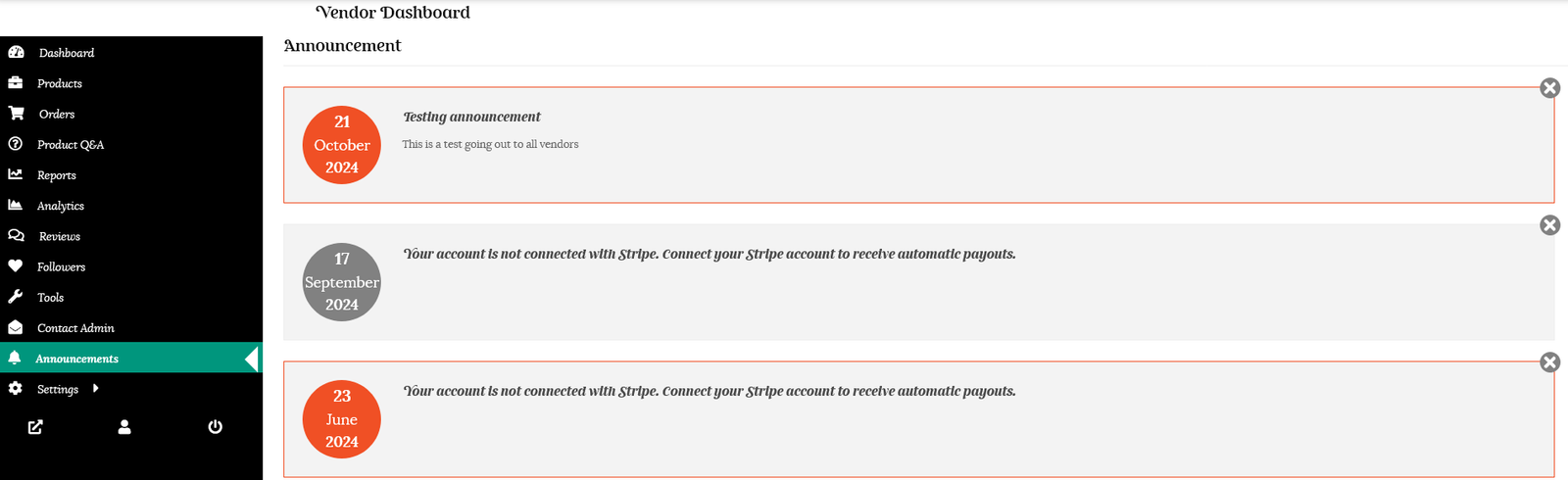
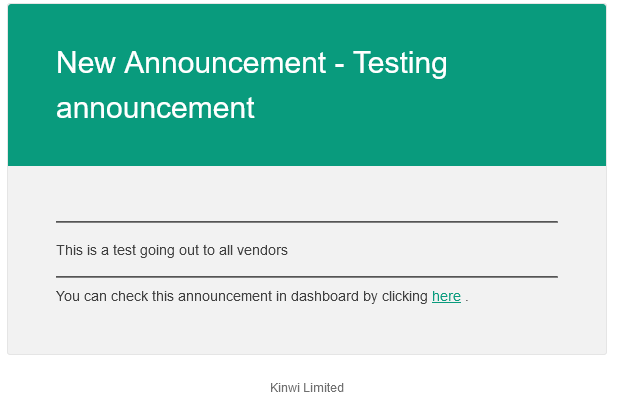
Any announcement from the Kinwi admin will be found under this tab. Announcements will also be shown on your dashboard summary when you log in to your account.
You will also receive an email letting you know the details of the announcement.
Support tickets
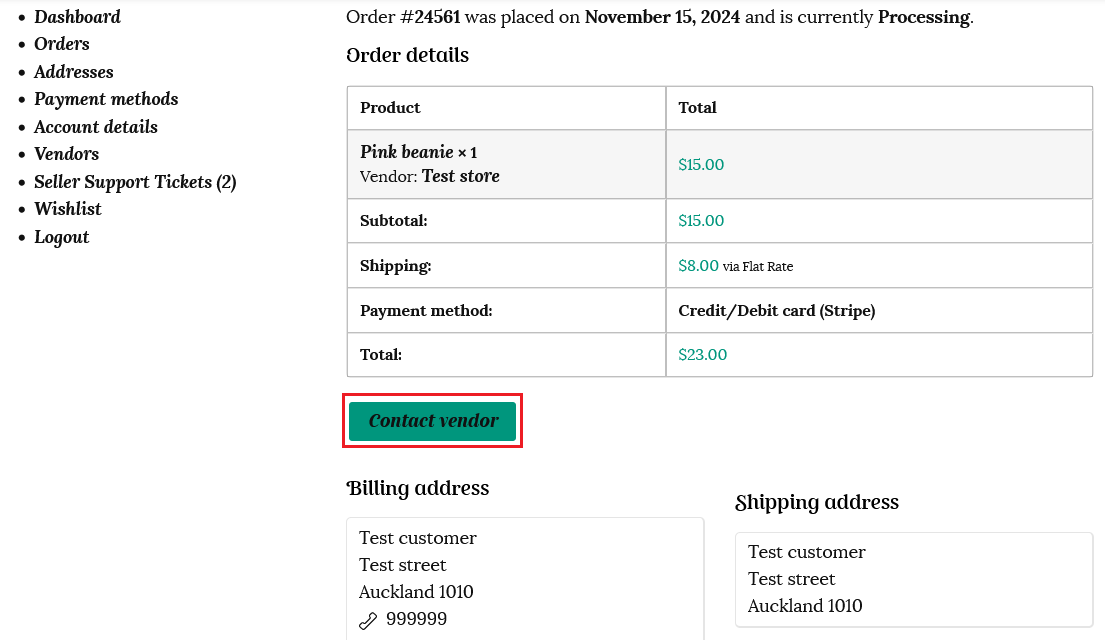
This feature lets customers generate a support ticket for a product they have purchased from you. A “Contact vendor” button will show on their order details.
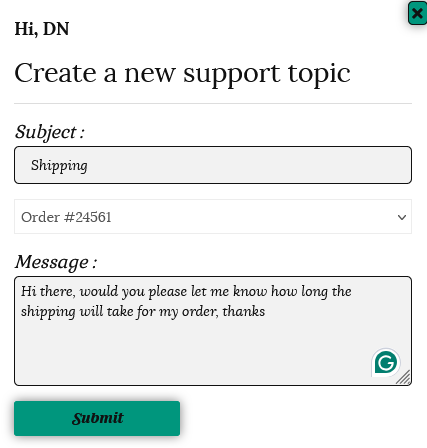
When the customer clicks the button, a pop up form will appear for the customer to fill in and submit.
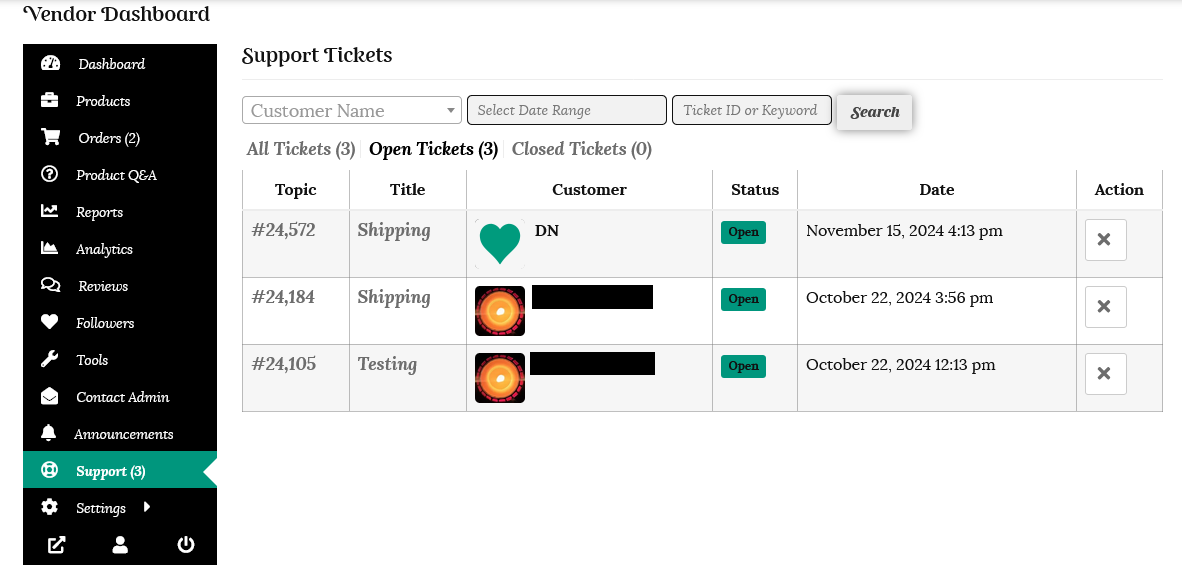
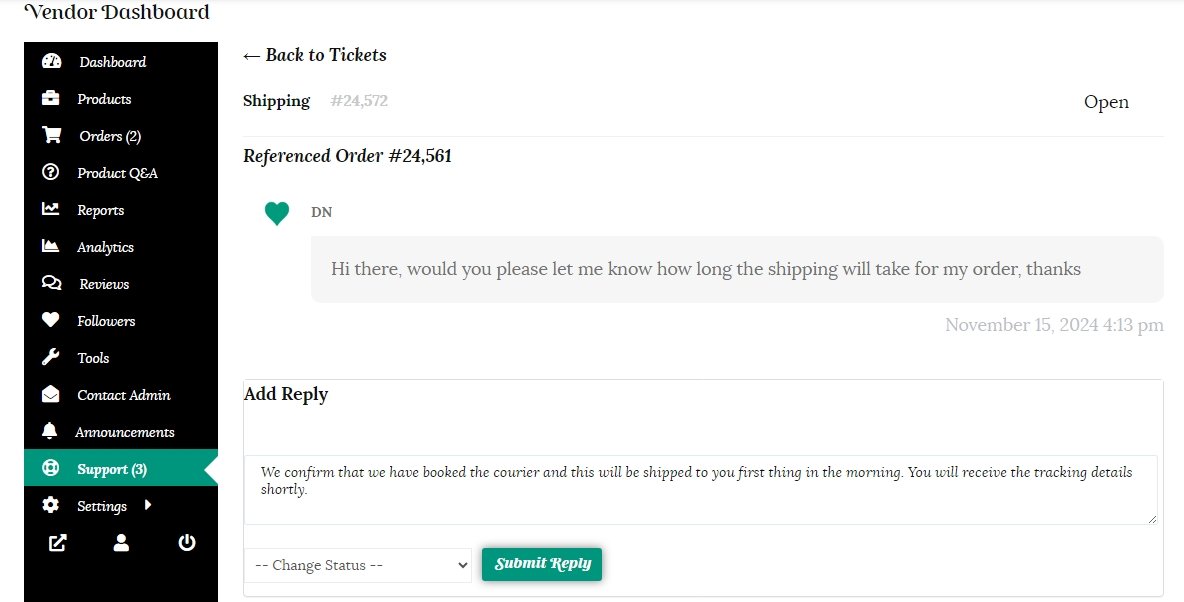
You will find your support tickets on your dashboard under “Support,” and you will also receive an email notification that a customer is waiting for support with a link to reply.
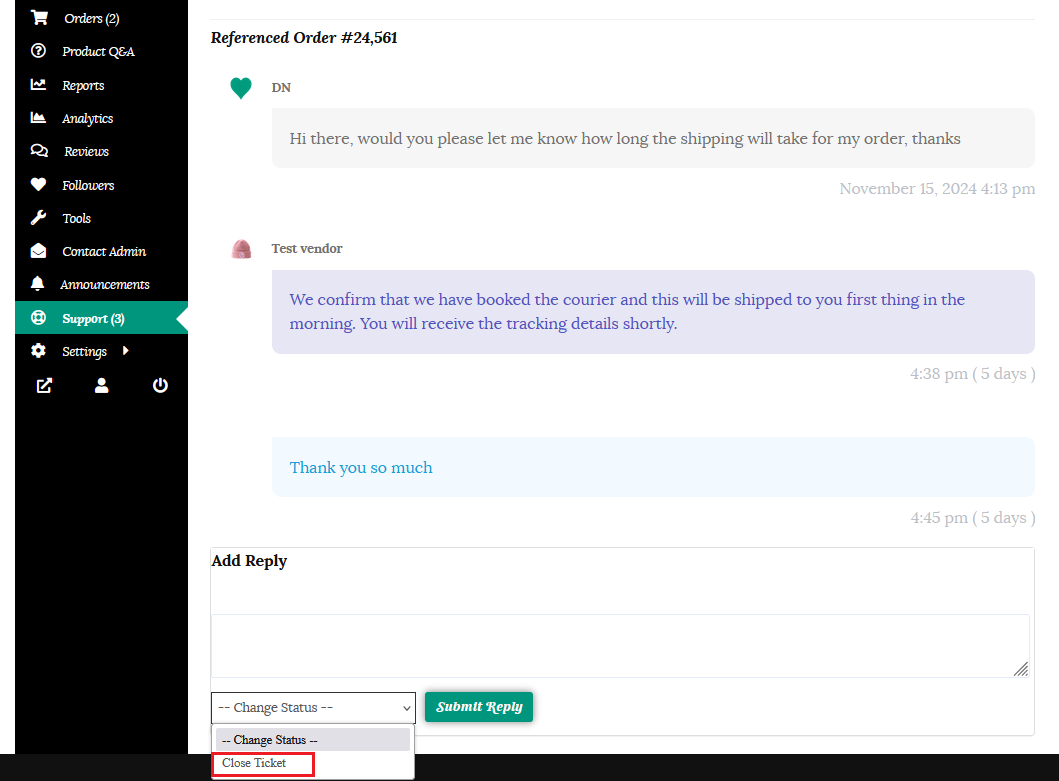
Click on the ticket and submit your reply to the customer.
The customer will receive an email with your reply and a link to respond if needed. You can keep communicating on the same thread. Once the issue has been resolved click the “Close ticket” button.
Going on vacation
This is a useful tool if you are going to be away and will not able to access your store to fulfill orders for a set period.
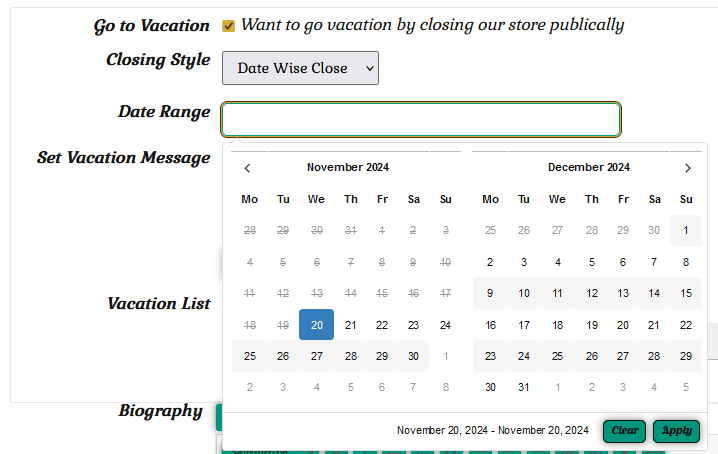
Navigate to Settings > Store on your dashboard.
Tick the Go to Vacation box. You will then have the option to instantly close your store or select a date range.
Write a message that you would like displayed to customers and click the “Update Settings” button to action this.
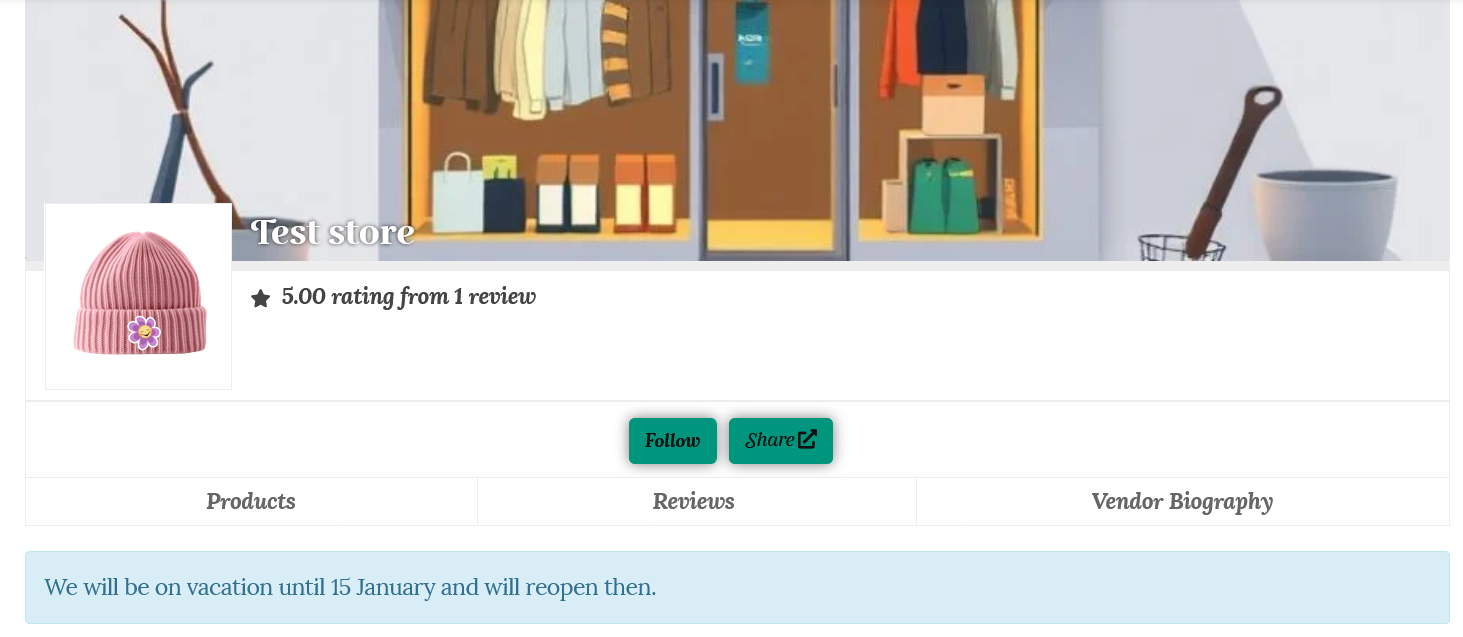
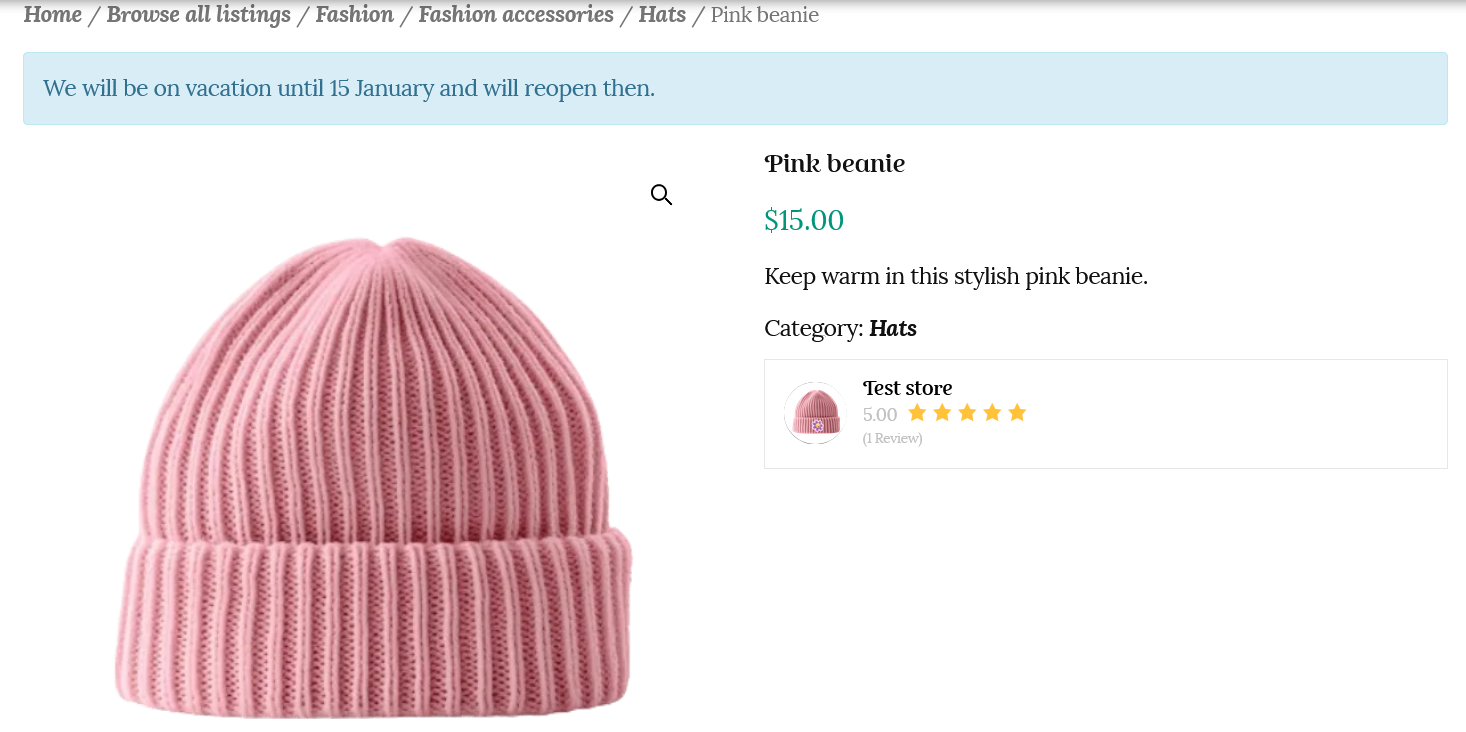
This message will be displayed to the customer when they visit your store page, as well as be shown on your product pages. The customer will not be able to purchase your items as the Add to cart button will be hidden.
Your store will automatically reopen on the selected date if you have selected a date wise close. Otherwise, once you are back, uncheck the “Go to Vacation” box and click the “Update settings” button to enable customers to purchase your products again.
Please reach out if you need further assistance in managing your store. You are welcome to contact us here or use the “Contact Admin” tab in your vendor dashboard. We are happy to help.