
Refunds are not just about resolving customer issues—they’re an opportunity to build trust, increase sales, and boost your brand’s reputation. A clear and customer-friendly refund policy fosters loyalty, enhances satisfaction, and sets your store apart.
Build Trust: Customers are more likely to buy when they know they can easily return or exchange items.
Enhance Reputation: Positive refund experiences lead to glowing reviews and repeat business.
Reduce Disputes: A clear policy minimizes conflicts and avoids escalations.
Show Professionalism: A fair approach demonstrates integrity and customer value.
Key Benefits of a Good Refund Policy
By implementing a straightforward refund process, you not only improve customer satisfaction but also position your store for long-term success. Remember, every refund is an opportunity to turn a dissatisfied customer into a loyal one!
Your refund policy should be clear, concise, and accessible in your store’s terms and conditions. Use simple language to explain:
Timeframe: How long customers have to request a return or refund.
Process: How customers can initiate a request (e.g., email, tickets).
Shipping Costs: Who covers the return shipping fees.
An example of a returns/refund policy is below. Change the details to suit your store. Add this policy to your Terms and Conditions found by going to your store dashboard > Settings > Store and scrolling down to the Terms and Conditions section.
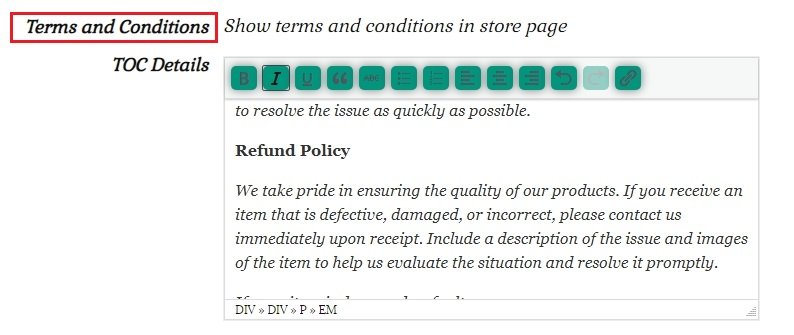
“If you’re not completely satisfied with your purchase, we’re here to help! Please review our refund policy below for more details.
Refund Eligibility
How to Request a Refund
Return Shipping
Processing Refunds
Damaged or Defective Items
If your item arrives damaged or defective, please contact us within 7 days of receiving your order. We’ll work quickly to resolve the issue by offering a replacement, repair, or refund.
Exchanges
If you’d like to exchange your item for a different size, colour, or product, please reach out to us for assistance. Exchanges are subject to product availability.
Non-Returnable Items
The following items cannot be returned:
Contact Us
For any questions or concerns about refunds or returns, please don’t hesitate to reach out to our support team. We’re happy to assist!
Use the “contact vendor” button on your order details, or our store page. You will need to be logged into your account.”
The refund tool enables you to; refund one or more products from an order, the complete amount of the order and the shipping charges. A partial refund may be indicated for example; if the order included multiple items, but one of the items arrived damaged; or you want to refund the cost of the item for a change of mind return, but not include the shipping cost.
You can process multiple refund requests for the same order up to the total order total.
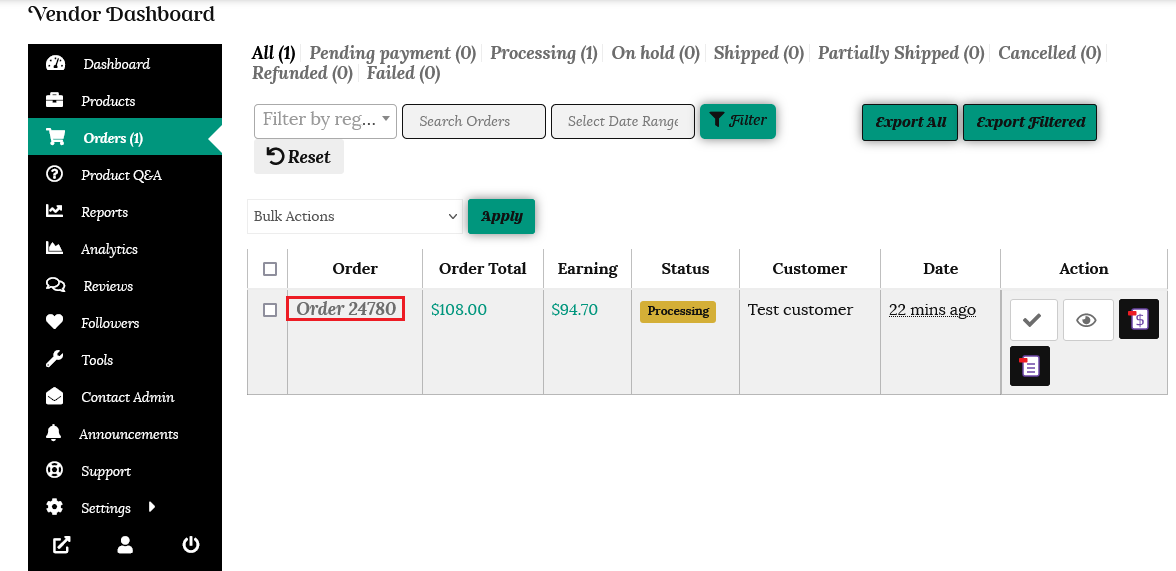
To process a refund, go to the orders tab in your dashboard and click on the order number applicable.
Click on the “Request Refund” button.
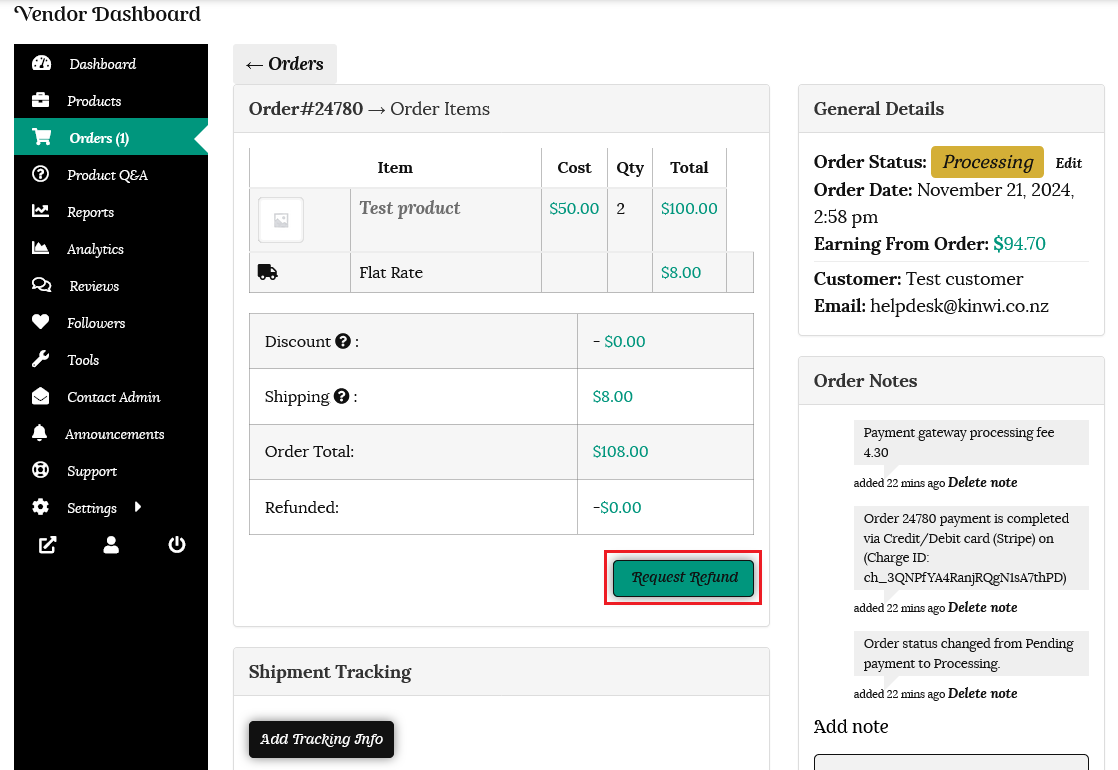
All items in the order will be shown with the item name, cost, quantity ordered & total cost.
Enter the refund details on the form. Select the quantity for each product, the refund amount and reason for the refund. Click on the refund via Stripe button.
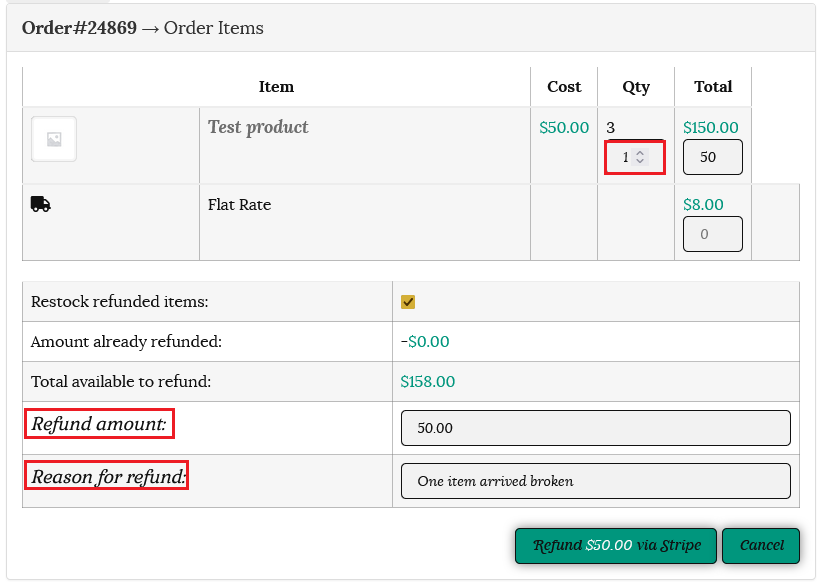
Click “OK” to confirm you wish to process the refund.

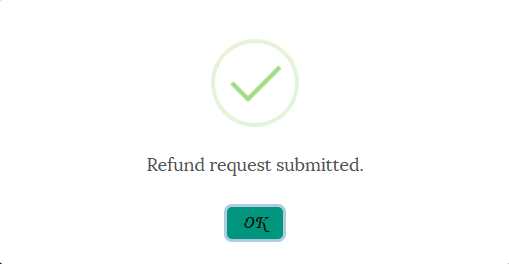
The refund amount will now be disbursed automatically to the customer’s account via Stripe. The details will show on the order as seen below.
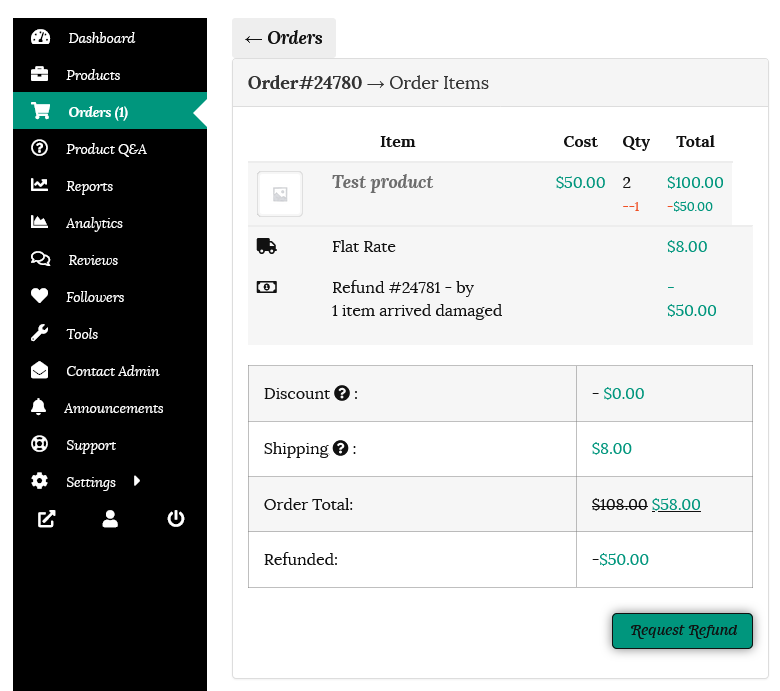
You are able to make additional refunds if needed, as long as the total available is not exceeded.

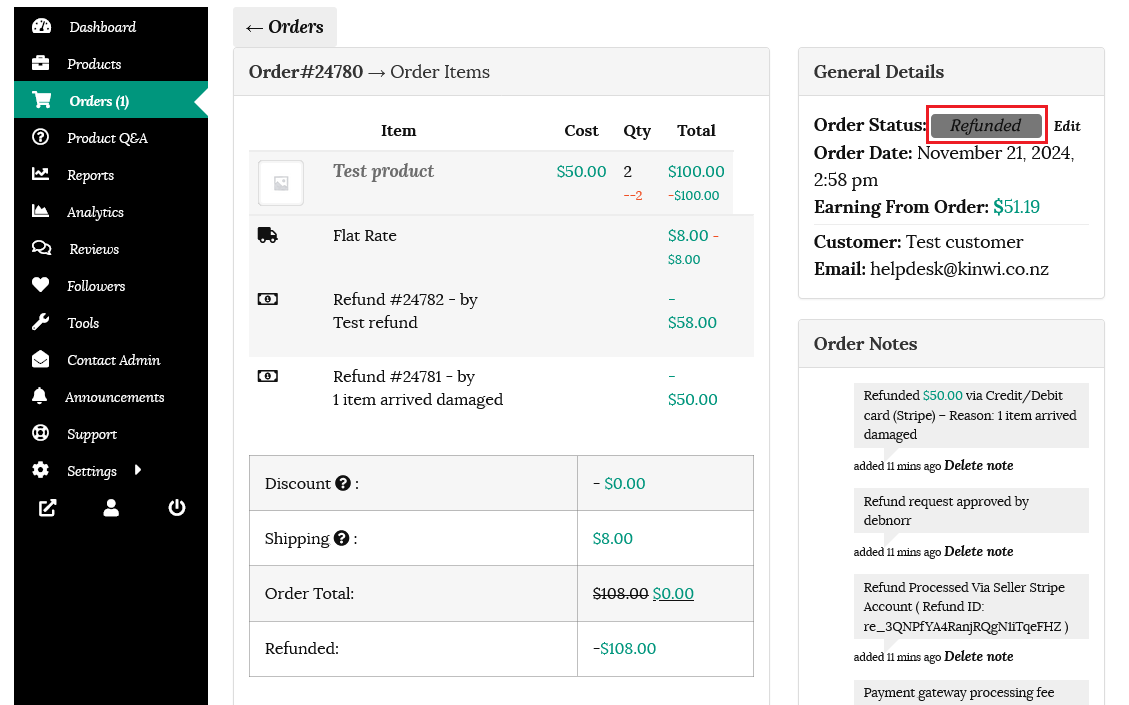
If you have processed a full refund you can change the order status to “Refunded” to give refunded orders visibility on your order list.

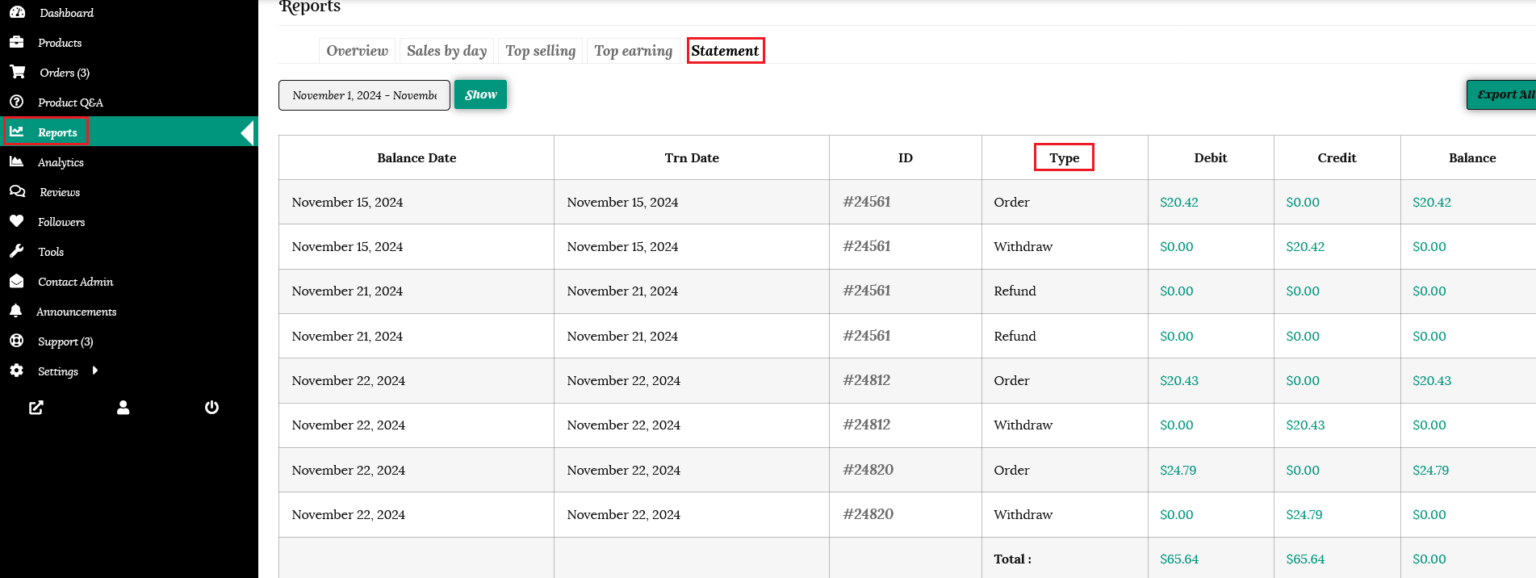
Refunds will be listed in your statement, under the “Reports” tab in your dashboard.
A dispute (also known as a chargeback) occurs when a cardholder questions your payment with their card issuer.
When your store receives a card dispute (also called a chargeback), the cardholder’s card issuer creates a formal dispute on the card network, which immediately reverses the payment, pulling the money for the payment—as well as one or more network dispute fees—from Stripe. After that, Stripe debits your balance for the payment amount and dispute fee.
If you issue a full refund on a charge before a dispute happens, it is no longer possible for the cardholder to dispute it. So you are protected from any future dispute or dispute fee. Once a cardholder initiates a dispute, it is no longer possible to avoid the fee.
To help you submit the best possible response for each dispute, Stripe provides a guided process within your dashboard. This allows you to provide all of the necessary text and images that are appropriate to the dispute reason and your counter argument.
The most effective dispute strategy for your business is to reduce the number of disputes it receives in the first place.
If you do receive a dispute, the most effective way to proceed is to work directly with your customer to resolve the issue.
Every card network has some provision in its dispute system for the cardholder to retract a dispute after filing it. If you can settle the matter amicably with your customer, and convince them to withdraw the dispute, that’s the best way to win it. Reach out to your customer to better understand their complaint, and try to work through the problem with them. If you’re able to satisfy the customer, ask them to reach out to their card issuer and withdraw the dispute.
Please make sure you are familiar with the Stripe documentation here;
https://docs.stripe.com/disputes
Whether you win or lose a dispute, Stripe incurs a fee. To cover these costs, Stripe will no longer return the fee for successfully contested disputes. The current fee is $25.
To help mitigate this fee:
Stripe Radar helps automatically reduce disputes by an average of 41%, and they’ve enabled this for your account at no additional cost.
Stripe now recommends what evidence to submit by analysing millions of disputes, so that you can fight the right ones with compelling evidence.
Your available Stripe balance may go into the negative if the cost of refunds, disputes or Stripe fees is greater than the existing balance. If your account has a negative balance, you will not be able to send out refunds until the negative balance is resolved.
Automatic withdrawal, sometimes referred to as auto debits, is when Stripe automatically initiates an account debit from the bank account on file with the negative balance for the amount owed. If your account is eligible for automatic withdrawal, Stripe will attempt to debit your bank account within 2 business days of the negative balance. If the debit succeeds, your account will be funded. If the debit fails, you will need to add funds to your balance an alternative way. If you are eligible for automatic withdrawals, please ensure that you have an active Direct Debit Instructions (DDI) on file to prevent delays. If you are concerned about issuing refunds sooner, you may add funds to your Stripe account proactively using the instructions below.
For more information, please refer to Auto Debits FAQ
Adding funds directly
You are able to add funds directly to your Stripe account from your Dashboard by following these instructions: https://stripe.com/docs/add-funds
In the event you issue a refund to a customer that results in a negative Stripe balance, the refund will show as “pending.” The refund will not be sent to your customer until your balance is repaid and brought back into the positive and the full refund amount is available (either from new charges that increase the balance on your account, or from a transfer to Stripe).
In the event a charge with a “pending” refund is disputed by the cardholder’s bank, the refund will fail and a dispute will be created. To avoid this, we recommend you pay into your account balance to bring it back into the positive as soon as possible so that refunds are successfully submitted to the card networks and you are protected from disputes.
Bank account details can be updated directly from your Stripe Dashboard:
https://support.stripe.com/questions/update-existing-bank-account-information
Please reach out if you need further assistance in managing & processing your refunds. You are welcome to contact us here or use the “Contact Admin” tab in your vendor dashboard. We are happy to help.